
Homepage | Help | Technical Help | Browser Topics
- Homepage | Help | Technical Help | Browser Topics
- What should I do if ‘Remember Me’ does not work?
- What do I do if loading takes forever?
- Why do I need to clear my cache?
- What do I do if the game is running slowly?
- How do I clear my cache?
- Why aren’t some parts of the game appearing on my screen?
- What happens if I cleared my cache, but am getting the same error message?

What should I do if ‘Remember Me’ does not work?
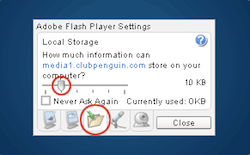
If ‘Remember Me’ doesn’t work on your computer it means your Flash Player doesn’t have enough room to save information from Club Penguin.
You should never use the ‘Remember Me’ feature if you are on a public computer. Someone else could log in with your penguin and play on your account.
What do I do if loading takes forever?
No one likes to wait for things to load. So if Club Penguin’s taking a really long time, there’s a few things you can try:
- Refresh or reload the web page.
• Look at the very top of your screen
• Click on ‘View’
• Click on ‘Refresh’ or ‘Reload’
• You can also click a button in your toolbar on top of the screen - Check out the What’s New Blog
• The blog will often let you know if updates are being made to the website - Wait a few minutes and try again
• It might mean a lot of people are logging on at the same time - Try clearing your cache
• Sometimes you’re able to download most of a page, and then it stops
• This could be a cache issue - If you’ve tried everything, and it hasn’t helped, read Why is my connection slow?
Why do I need to clear my cache?
Clearing your cache is a good thing to do every so often.
Web browsers save tiny files onto your computer when you visit websites. This means the next time you view those websites, they’ll load faster. This is what techies call ‘caching’.
Club Penguin updates with new content every week and sometimes a web browser will load old content that was cached (saved) rather than new files. This is known as a ‘cache error’. It can cause slow loading and login, and can display old content instead of new content.
Ask an adult to help you to clear your cache.
What do I do if the game is running slowly?
If your penguin appears to be waddling around Club Penguin in slow motion, there’s a few things you can try to speed things up:
- Make sure you’re not running other programs while you’re on Club Penguin. If you were visiting another website, make sure you exit out of it. Don’t try to play Club Penguin while you’re downloading music or video content from another site. This will slow things way down!
- Sometimes things run slowly when the server is very busy. For example, Friday afternoon is a popular time to log in to Club Penguin. You might find that the game runs slowly then. Log in again, and try clicking on a server that isn’t quite as full.
- If you have more than four penguins saved on your log-in screen, this might make the game run slowly. Remove the penguins from your saved list. You can still login by typing in your penguin name each time.
- You might be playing from a slow computer. There’s not much you can do except to play on a different computer.
- You might also have a slow internet connection. Please read Why connection is slow? to find out more about this issue.
How do I clear my cache?
Clearing your cache is easy. Find out what Web Browser you’re using and follow the directions below.
First, we recommend that you update to the latest version of your web browser. Out of date versions can cause issues playing Club Penguin.
To clear your cache, ask an adult to help you:
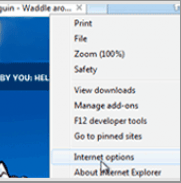
If you use Internet Explorer 9:
- Select ‘Internet Options’ from the Gear menu in the top right corner of the screen
- Select ‘Delete’ in the Browsing History section
- Make sure the ‘Preserve Favorites Website Data’ is not checked
- Select ‘Temporary Internet Files’ in the ‘Delete Browsing History’ window
- Select ‘Delete’
- Close the browser, and open it again to complete the process
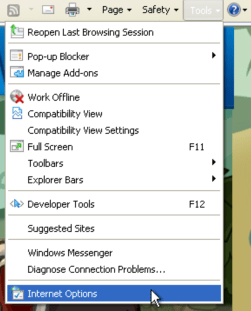
If you use Internet Explorer 8:
- Open the Tools menu in the top right corner of the screen
- Select ‘Internet Options’ from the menu that appears
- Under ‘Browsing History’, click ‘Delete’
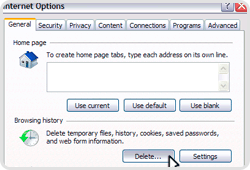
- Make sure the ‘Preserve Favorites Website Data’ is not checked
- Select ‘Temporary Internet files’ in the ‘Delete Browsing History’ window
- Select ‘Delete’
- Close the browser, and open it again to complete the process
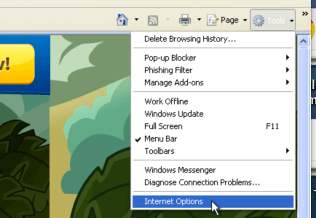
If you use Internet Explorer 7:
- Open the Tools menu in the top right corner of the screen
- Select ‘Internet Options’ from the menu that appears
- Select ‘Delete’ in the Browsing History menu
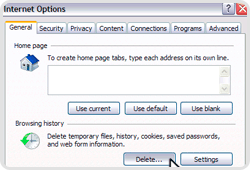
- Select ‘Delete files’ under Temporary Internet Files
- Close the browser, and open it again to complete the process
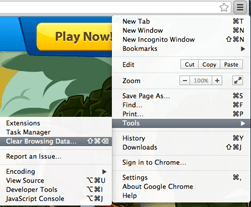
If you use Chrome:
- Select the 3 bar icon in the top right corner of the screen
- Select ‘Tools’
- Select ‘Clear Browsing Data’
- Make sure ‘Empty the cache’ is checked
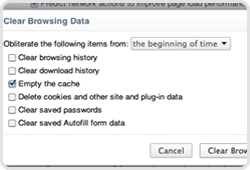
- Under ‘Time Period To Clear’, set this to ‘The Beginning Of Time’
- Select ‘Clear Browsing Data’
- Close the browser, and open it again to complete the process
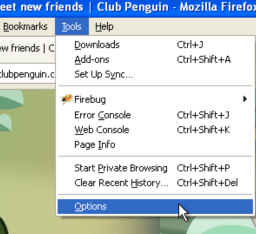
If you use Firefox 4+:
- Click the ‘Tools’ menu in the top left corner of the screen and select ‘Options’
- Select ‘Privacy’, then click on ‘clear your recent history’
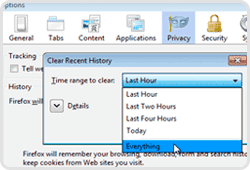
- Make sure ‘cache’ is checked
- Set the ‘Time range to clear’ to ‘Everything’
- Select ‘Clear Now’
- Close the browser, and open it again to complete the process
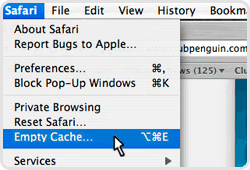
If you use Safari:
- Click Safari on the menu bar and select ‘Empty Cache’
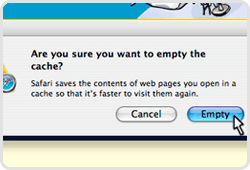
- Select ‘Empty’ in the menu that appears
- Close the browser, and open it again to complete the process
Why aren’t some parts of the game appearing on my screen?
There are two main reasons why some parts of the game aren’t appearing on your screen:
Reason #1 – Screen Resolution
You might not have enough screen resolution to show parts of the game. It’s easy to adjust this.
If you are using a PC:
- Log out of Club Penguin. Go to the desktop of your computer.
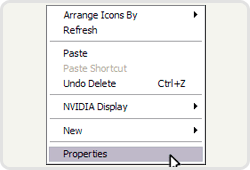
- Click on the right button on your mouse. A box will pop up. Click on Properties.
- Another box will pop up. Look at the tabs running across the top. Click on Settings.
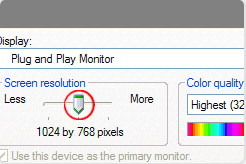
- You’ll see a little box titled “Screen Resolution.” In this box is a bar with an arrow on it. Drag the bar to the right until the screen resolution reads 1024 by 768 pixels or higher.
- Click OK.
- Log back on to Club Penguin and try playing the game again.
If you are using a Mac:
- Log out of Club Penguin.
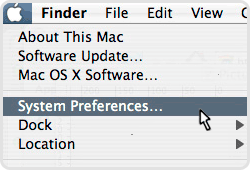
- Click on the apple icon on the top left of your screen. A menu will appear. Click on System Preferences.
- Find the icon that looks like a computer monitor. It’ll say “Display” underneath. Click on this icon.
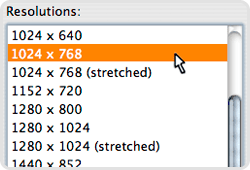
- A box will pop up. Inside this box you’ll see the word Resolutions. Make sure that the resolution highlighted is 1024 x 768 or higher. If it is not, use your mouse to highlight 1024 x 768.
- Click on the red button on the top of the box to close the box.
- Log back on to Club Penguin and try playing the game again.

Reason #2 – Flash Player Version
- You might not have the right version of Adobe Flash Player to run the game properly. You’ll need to download a new Flash Player.
- Visit Flash Player Download Center to update Flash Player. Follow the instructions on the Adobe website.
What happens if I cleared my cache, but am getting the same error message?
If you’ve followed the steps here, your cache should be clear. If you’re still getting the same message, here are a few other things you can try.
- Exit your web browser and open it up again before logging into Club Penguin.
- Restart your computer by turning it off, then on again. Then login to Club Penguin.
- If none of this works, you might be having trouble with your Flash Player. Your Flash Player is the part of your computer that lets you play Club Penguin. You might need to re-install it. The best way to do that is to go to the Adobe Flash Player Download Center.
*Note: If you’re using Google Chrome, step #3 won’t be necessary. Google Chrome automatically updates Flash Player.




 That Penguin Game
Leave us a comment below!